
Quick answer
Teams has no export button for chats. The fastest way to get a clean PDF of a whole Teams chat is to back it up with the Teams Chat Backup Chrome extension, open it in the viewer and choose Download → PDF. For a few recent messages, your browser’s Print → Save as PDF can be enough.
The 4 methods compared
| Method | Full history | Images | Admin needed | Effort |
|---|---|---|---|---|
| Teams Chat Backup | Yes, loads it for you | Yes | No | About a minute |
| Browser Print to PDF | Only what is loaded on screen | Partly | No | Low for short chats |
| Copy and paste into Word | Only what you select | Often lost | No | High for long chats |
| Admin eDiscovery export | Yes | Depends | Yes | Needs an IT request |
Method 1: Teams Chat Backup (recommended)
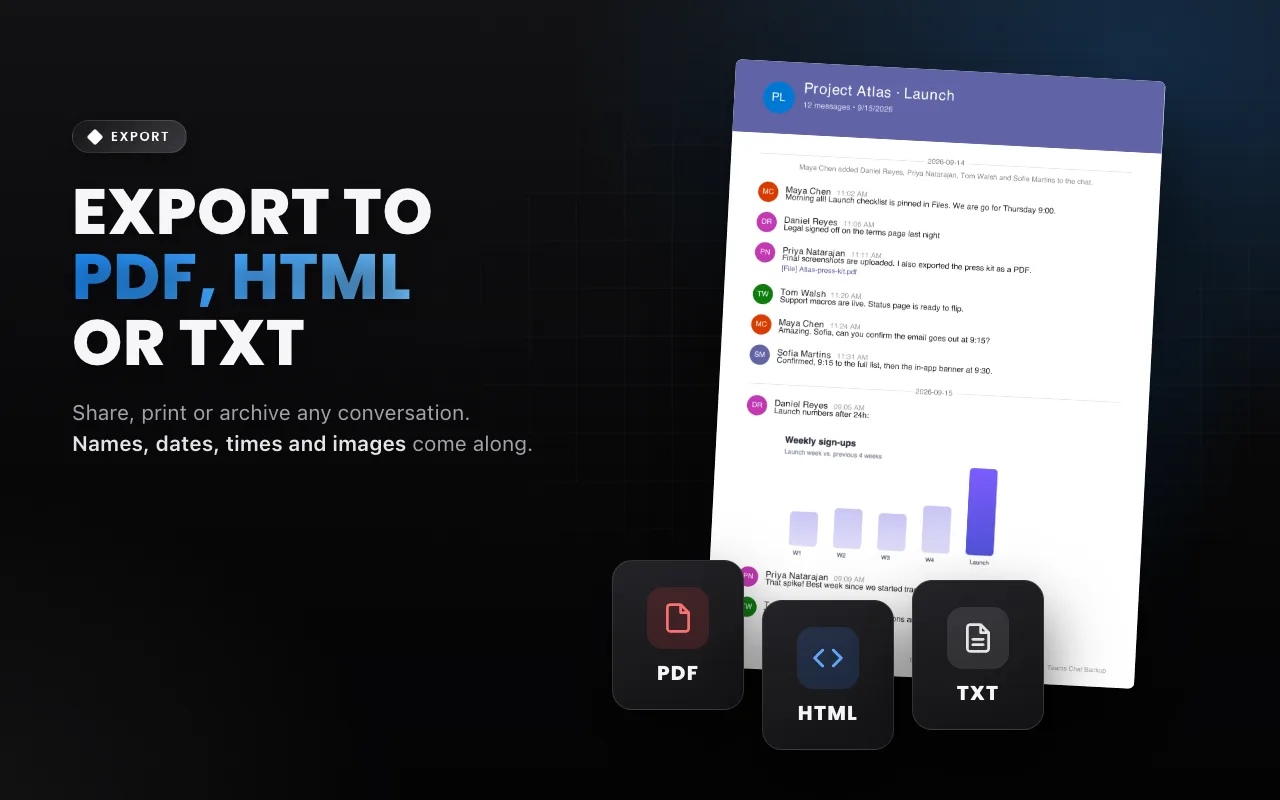
Teams Chat Backup is a Chrome extension that saves a Teams chat to a private archive in your browser and exports it to PDF, HTML or TXT. Nothing is uploaded; it works with your normal Teams sign-in.
- Install the extension. Add Teams Chat Backup from the Chrome Web Store. No account or sign-up.
- Open Teams in Chrome. Go to
teams.microsoft.com(work or school) orteams.live.com(personal) and sign in as usual. - Choose the chat. Click the Teams Chat Backup icon, then Backup Chats & Channels, and pick the conversation. The chat you have open is marked CURRENT.
- Start the backup. Click Start Backup and keep the Teams tab open. The extension scrolls to the beginning and saves every message with its author, date and images.
- Open your copy. Click View Backed Files. The chat opens in a private, searchable viewer inside your browser.
Then export the PDF:
- Open the chat in the viewer and check it looks complete. You can search messages and jump to any date.
- Click Download → PDF. The file is saved to your computer. Choose HTML for a page that opens in any browser, or TXT for a plain transcript.
Want to see the result first? Open a sample PDF export.
Teams Chat Backup · Back up a Teams chat in about a minute. Free for your first chat.
Method 2: Print the chat to PDF from your browser
Works for a handful of messages:
- Open the chat in Teams on the web.
- Scroll up until the messages you need are loaded.
- Press Ctrl+P (⌘+P on Mac) and choose Save as PDF.
Limitations: Teams only keeps part of a long conversation on screen, so the PDF usually starts mid-chat. The sidebar and toolbars are printed too, and messages can be cut across pages. The desktop app has no print option for chats.
Method 3: Copy and paste into a document
Select messages in Teams, copy them into Word or Google Docs, then export as PDF. It works for short exchanges, but on long chats you have to scroll and select in chunks, dates and names often lose their formatting, and images rarely come along.
Method 4: Ask your Microsoft 365 admin
For work and school accounts, administrators can search and export Teams messages with Microsoft Purview (eDiscovery or content search). It is the right route for legal or compliance requests, but it requires admin permissions, and the output is a set of files meant for review tools rather than a readable chat PDF.
Teams Chat Backup creates a personal copy of messages you can already see. It is not a legal-hold, eDiscovery or retention system. Use your organization’s approved process when an official record is required.
FAQ
Does Teams have a built-in "export chat to PDF" button?
No. Teams on the web and desktop has no option to export a single chat as a file. You either print what is on screen, copy it out, ask an admin to run an eDiscovery export, or use a tool like Teams Chat Backup.
Will the PDF include images and the full history?
With Teams Chat Backup, yes: the extension loads the whole conversation first, then exports messages with names, dates, times and images. Printing the page only captures what Teams has loaded on screen.
Can I export a Teams chat to PDF on Mac?
Yes. Teams Chat Backup runs in Chrome on Mac, Windows, Linux and ChromeOS, and the PDF is saved to your Downloads folder.