
Why back up Teams chats?
Your Teams messages live in your organization’s Microsoft 365 tenant. That works until it doesn’t:
- You change jobs and your account is closed.
- A retention policy deletes messages older than a set age.
- Guest access to a client or partner tenant is removed.
- A school account expires after graduation.
A backup gives you a copy you control, that you can search and read offline.
Back up a Teams chat step by step
- Install the extension. Add Teams Chat Backup from the Chrome Web Store. No account or sign-up.
- Open Teams in Chrome. Go to
teams.microsoft.com(work or school) orteams.live.com(personal) and sign in as usual. - Choose the chat. Click the Teams Chat Backup icon, then Backup Chats & Channels, and pick the conversation. The chat you have open is marked CURRENT.
- Start the backup. Click Start Backup and keep the Teams tab open. The extension scrolls to the beginning and saves every message with its author, date and images.
- Open your copy. Click View Backed Files. The chat opens in a private, searchable viewer inside your browser.
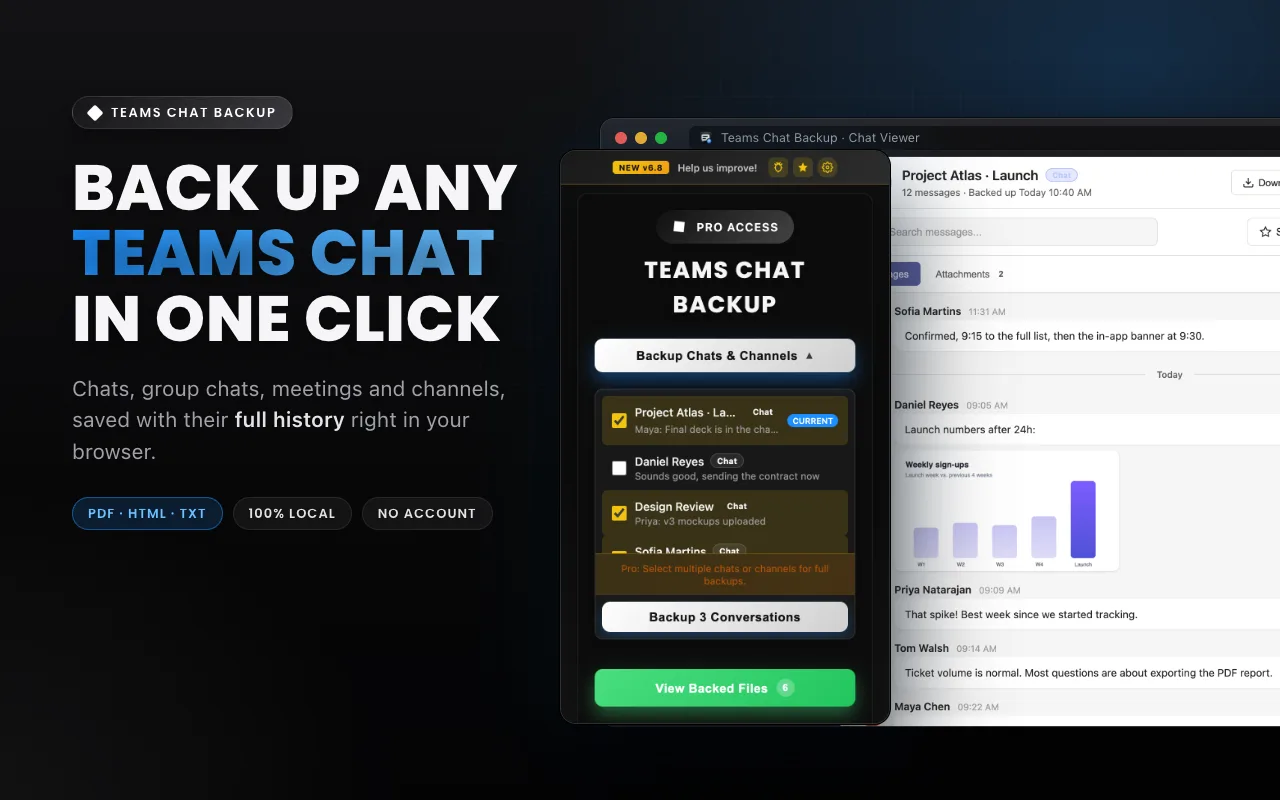
What gets saved: every message with its author, date and time, system messages (people added, meetings ended), and images in the conversation. Pro can also download shared files.
Teams Chat Backup · Back up a Teams chat in about a minute. Free for your first chat.
Very long chats (months or years)
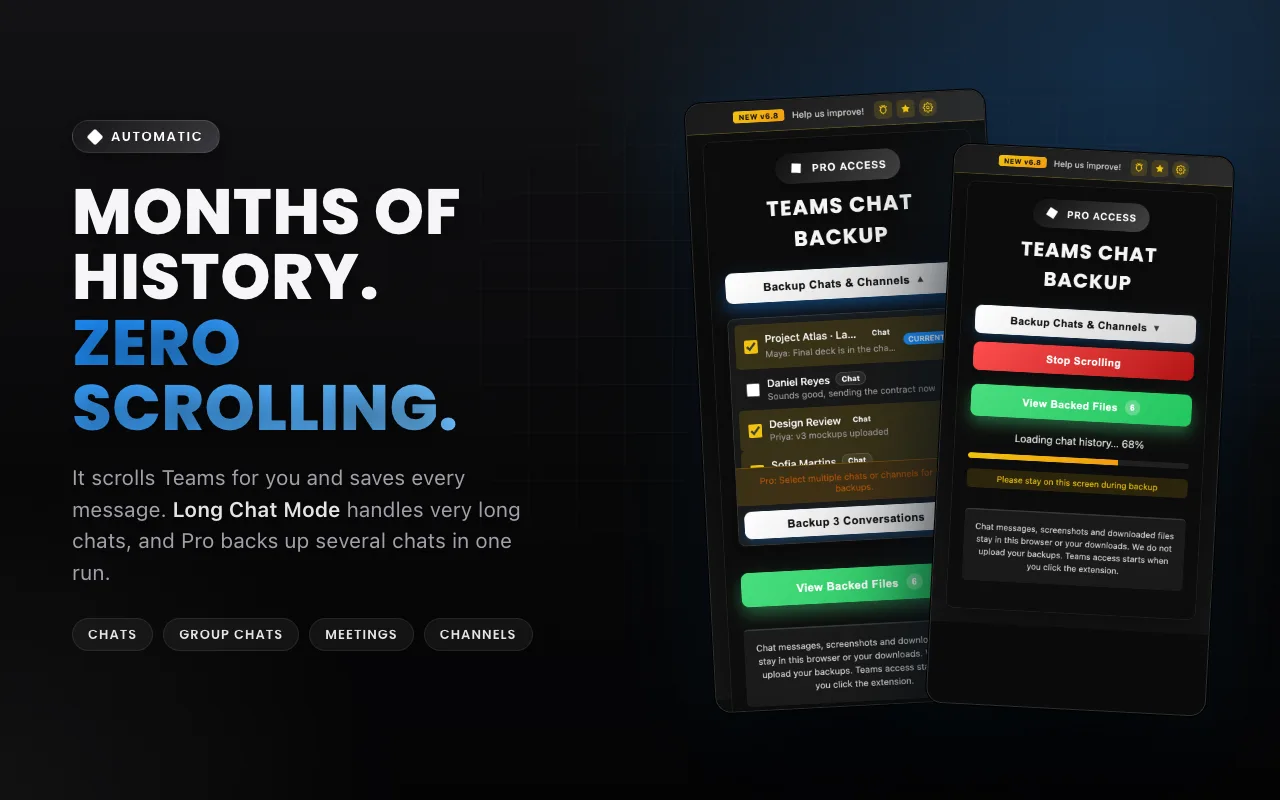
Teams loads older messages slowly. For big histories, open the extension’s Settings and turn on Long Chat Mode. The extension then waits longer at the top of the chat so Teams has time to load older messages. Keep the Teams tab open until it finishes; progress is saved as it goes, so an interrupted backup can be continued.
Back up several chats at once
With Pro, tick several chats or channels in the popup and click Backup N Conversations. They are processed one after another and each becomes its own entry in the viewer. Run the backup again later to add new messages to an existing backup.
Keep your backups safe
- Export the chats that matter as PDF or HTML and store them with your other documents.
- Export your library (Pro) as a ZIP from the viewer every now and then. Uninstalling the extension or clearing browser data removes the local backups.
- Check your company policy before keeping copies of work conversations.
FAQ
Does Microsoft back up my Teams chats for me?
Your messages are stored in Microsoft 365 while your account and your organization’s retention settings allow it. That is not a copy you control: if your account is closed, a retention policy deletes old messages, or you lose guest access, you can lose them.
Can I back up Teams chats without admin rights?
Yes. Teams Chat Backup runs in your browser with your own Teams sign-in and only saves conversations you can already see.
Can I move my backups to another computer?
Yes. Export individual chats as PDF, HTML or TXT, or with Pro export your whole backup library as a ZIP and import it in Teams Chat Backup on the other computer.